
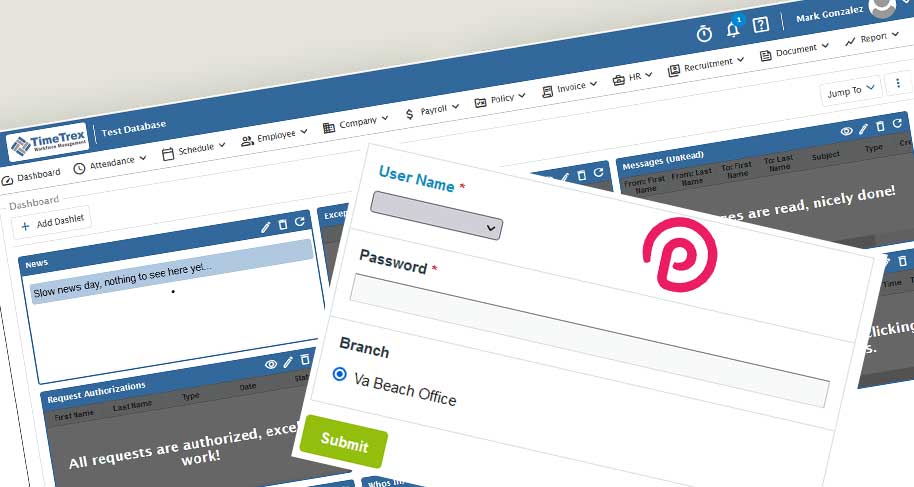
This is just a small recap of a two-way integration done for client that required a punch clock solution for their HRIS application. TimeTrex Community does not come with a punch clock feature and TimeTrex Enterprise comes with a QuickPunch interface but does not have a photo capturing mechanism to deter buddy punches. To get this feature, extra hardware, such as tablet set up in kiosk mode, must be purchased. Both versions rely on the same core classes to perform a punch in/out.
In this post, I delve into some of the database schema in TimeTrex to show the differences between API design and the physical database layer. I also go into hooking methods in ProcessWire to catch and modify form data in transit. The punch clock interface was created using a simple form in the ProcessWire CMF and all calls to TimeTrex were completed via its web API.
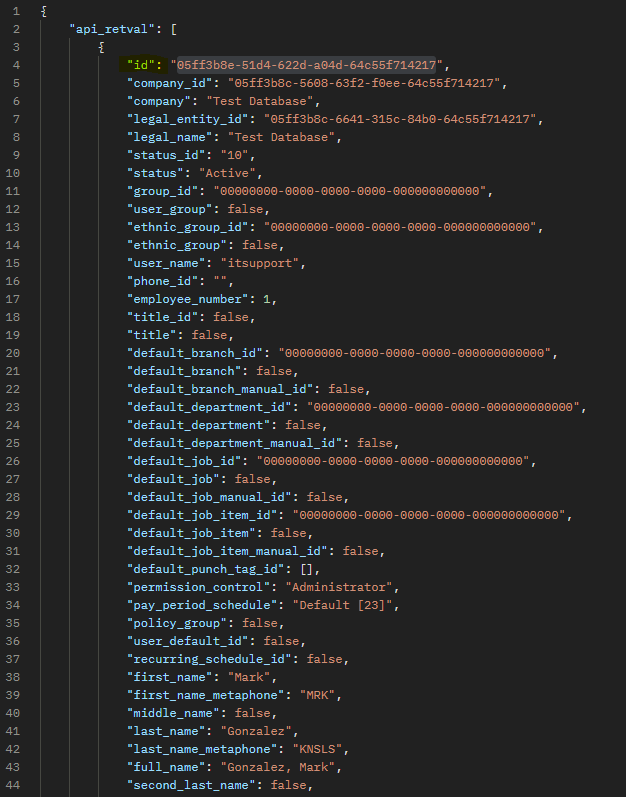
Before we can integrate the punch actions, a cursory overview of the User and Punch data will help with understanding the data flow. Using PostMan, we send a call to the getUser endpoint to see what the response will entail. According to the TimeTrex API documentation, we must provide the request with a registered API key (created in the TimeTrex interface) in SessionID, specify the APIUser class, and also the getUser method.

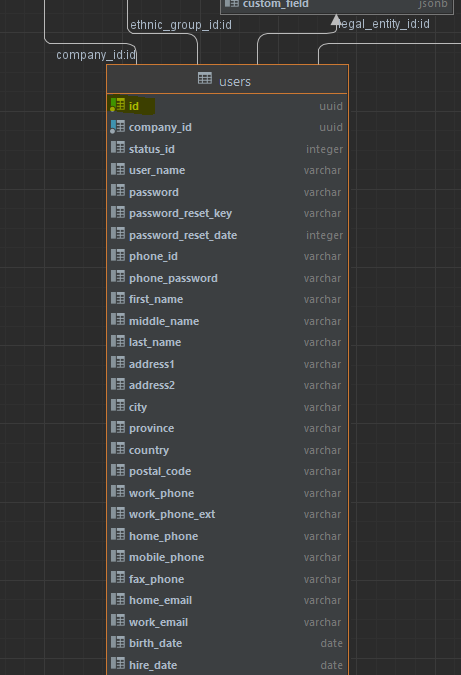
It is obvious that the API returns much more data for each request than what is in the schema for the related object. For example, the elements of the JSON response for the user data differs from that of the users database table. This is to be expected but we will need to be careful with the context in which the objects are used since their referenced name could be different in both the API results and in the database schema (i.e. foreign key names as data is referenced across tables). Here, the user ID is id in both the getUser call and in the database.
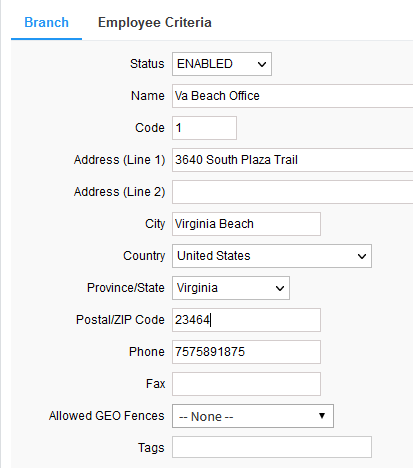
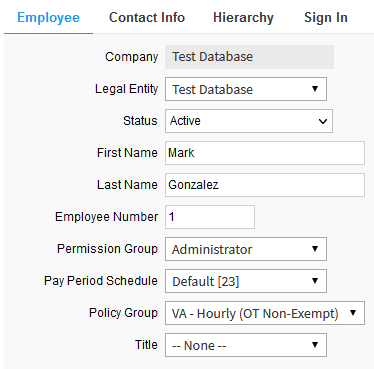
In TimeTrex, I create a Branch, set the Pay Policy to hourly for the user, put the user on the default payment schedule of biweekly, then manually Punch the user to create some data we can retrieve via the API call.
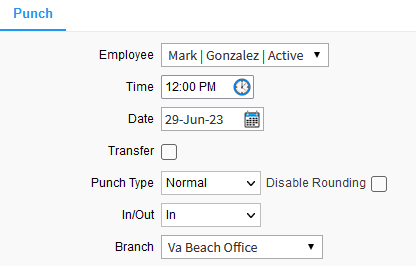
Retrieving the Punch data via the getPunch API call, we can see that the user ID is now referred to as user_id in the JSON response.

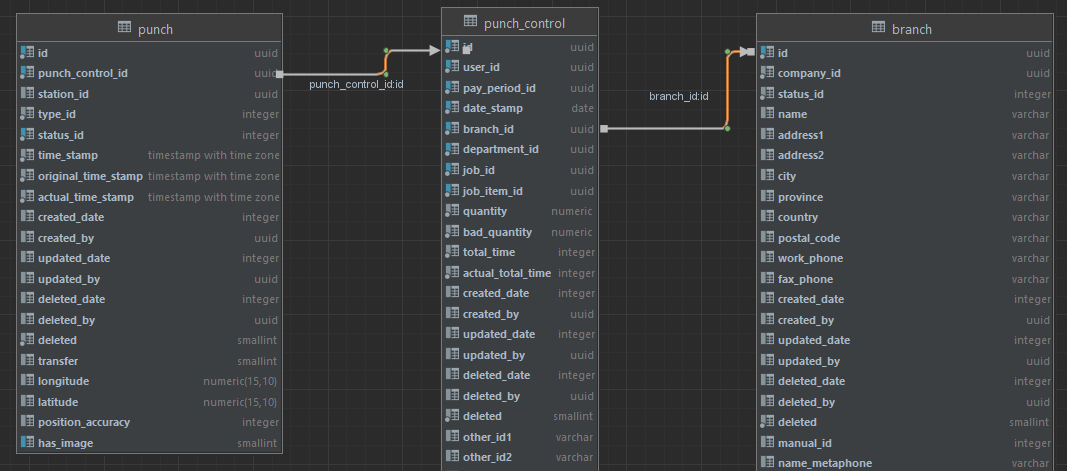
Interestingly, the punch database table does not contain user information. Instead, user information is joined to the punch table via the punch_control table.

Similarly, the punch table does not contain branch information. Instead, the punch_control table contains a foreign key reference to the branch table.
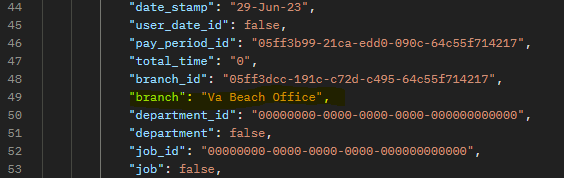
Now that we understand the user, punch, and branch information, we can set values for a punch API call and see if it registers in the database. But we need to note that we use be using the ID values for the user and branch even though the API returns plain text values for the user and branch names. If any time the user or branch name changes, the calls based on the names will break. Using the IDs will better guarantee operation in the event of a name change.
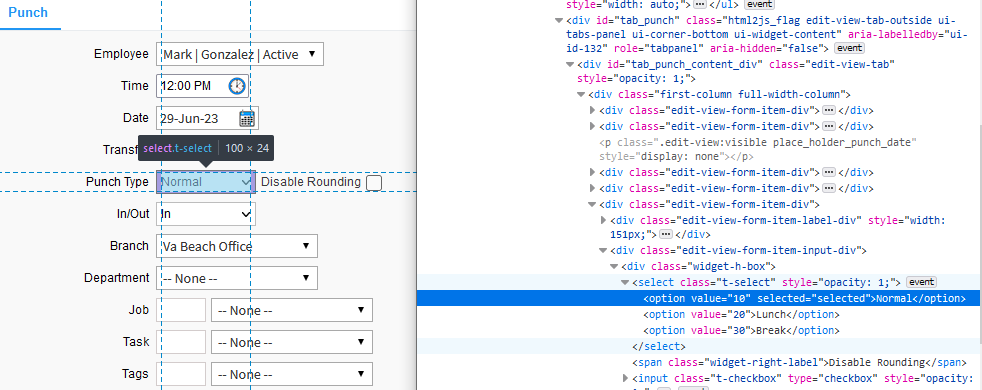
We also need to simulate the punch type value. To get the corresponding values, a quick peek at the browser Inspector shows us the possible values for the different types of punches. The default values are for Normal, Lunch, and Break. We’ll stick with testing the Normal value of 10. More values can be added via the TimeTrex interface.
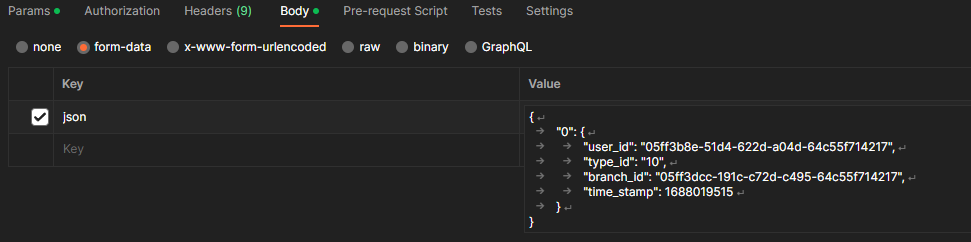
Now we simulate the punch action by sending the user_id, type_id, branch_id, and time_stamp to the setPunch API endpoint. These values go into a form-data submission in the Body of the request: not as parameters. For the time_stamp, it uses an Unix timestamp format. For this example, 1688019515 is equal to Thu Jun 29 2023 06:18:35 GMT+0000 and Thu Jun 29 2023 02:18:35 GMT-0400 (Eastern Daylight Time).
Voila! Checking our punch table in the database shows us that the API call was successful. Note the station_id is null on our call. Setting the station_id to the default value of zeros would be better suited for normalizing the data since that is what TimeTrex uses in absence of a punch station id.

The simplest way to get a form interface for ProcessWire is to use the FormBuilder module. Creating a new form is trivial. In this case, we only need a username, password, and branch field.
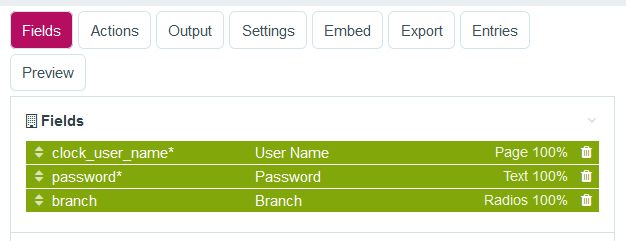
Since the branch is set to a single location, as would be the case for most punch clocks, we go ahead and give it the value provide earlier from the API call.

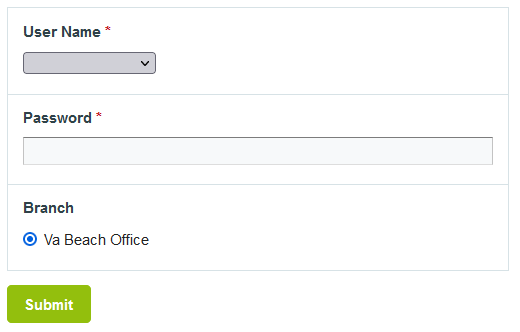
With the form ready, we just need to be able to pass data from the form to TimeTrex via the API client within ProcessWire. To do this, we hook into the processed input of the form after ProcessWire has handled the data. This is the point where the user has submitted the form and the POST data is now available.
$forms->addHookAfter('InputfieldForm::processInput', null, 'clockit');
function clockit(HookEvent $event)
{
	$form = $event->object;
	// allowable forms to use this hook
	$okForms = array('simple_punchclock');

	if(!in_array($form->name, $okForms)){
	    return;
	}

}
Next, we set the TimeTrex variables so that a new session can be authenticated for the client API.
// get the TimeTrex API class
	require_once('api/TimeTrexClientAPI.class.php');


    // Set TimeTrex variables
	$TIMETREX_USERNAME = $form->get('clock_user_name')->value;
	$TIMETREX_PASSWORD = $form->get('password')->value;


	// New client session, exit on error
	$api_session = new TimeTrexClientAPI();
	$TIMETREX_SESSION_ID = $api_session->Login( $TIMETREX_USERNAME, $TIMETREX_PASSWORD );
	if ( $TIMETREX_SESSION_ID == FALSE ) {
		$form->error("Something went wrong.");
		return;
	}
The data from the form can now be used to set the user for the perosn that is clocking in. Their credentials are verified against the database and the form prompts them if the login info is incorrect.
// Form information
	$userid = $form->get('clock_user_name')->value;
	$userpin = $form->get('password')->value;
	$branch = $form->get('branch')->value;

    // Get proper username for TimeTrex
    $userPage = wire('pages')->get("id=$userid");
    $username = $userPage->name;

	// New User object to retrieve TimeTrex user by user_name
	$user_obj = new TimeTrexClientAPI( 'User' );
	$aUser = $user_obj->getUser(
		array('filter_data' => array(
			'user_name' => $username
			)));

    // All the user's data in an array format
	$aUserData = $aUser->getResult();

    // Check user's pin against Timetrex and quit if not correct
    $phone_password = $aUserData[0]['phone_password'];
        if ( $phone_password != $userpin ) {
            $form->get('clock_user_name')->error("Please check your user name.");
		    $form->get('password')->error("Please check your password.");
		    return;
        }
Finally, the punch can be performed using the same variables we used during the API testing with PostMan.
// New Punch
	$punch_obj = new TimeTrexClientAPI( 'Punch' );

	$punch_data = array(
		'user_id' => $aUserData[0]['id'],
		'type_id' => 10, //Normal
		'time_stamp' => time(), // current Unix timestamp
		'branch_id' => $branch, //Branch
		'station_id' => '00000000-0000-0000-0000-000000000000' // To fill station_id in database
	);

    // Done
	$punch_obj->setPunch( $punch_data );
In order to get a browser to use the device's camera, a canvas must be created in which the videostream can be captured onto.
<script>
    var imageText;
    function handleError(error) {
        console.error('navigator.getUserMedia error: ', error);
    }
    const constraints = {video: true};

    (function() {
        const video = document.querySelector('#screenshot video');
        const canvas = document.createElement('canvas');

        navigator.mediaDevices.getUserMedia(constraints).
        then(handleSuccess).catch(handleError);

        video.onclick = function() {
            canvas.width = video.videoWidth;
            canvas.height = video.videoHeight;
            canvas.getContext('2d').drawImage(video, 0, 0);
            // Other browsers will fall back to image/png
            //img.src = canvas.toDataURL('image/webp');
            imageText = canvas.toDataURL('image/png');
            $('#screenshot').fadeOut('fast');
            $('#loadup').show();

            $.ajax({
                url:"<?php echo $page->httpUrl?>",
                data:{
                    base64: imageText
                },
                method: "POST",
                complete:function () {
                    location.href = "<?php echo $page->clock_url?>";
                }
            });
        };

        function handleSuccess(stream) {
            video.srcObject = stream;
        }

    })();
</script>
With the canvas set, the picture taken from the data stream needs to be saved to the server. Here, we use an AJAX call from the JavaScript code to get ProcessWire to create a new page and store the image captured as a field in the Page.
<?php

// Templates folder: needed for absolute path
$temp = $config->urls->templates;
$session->moveOn = "off";

if($config->ajax){
    if(isset($_POST['base64'])){
        $baseFromJavascript = $_POST['base64'];

        // Create a new Page in ProcessWire
        $p = new Page();
        $p->parent = $page->find("name=snapshots")->first();
        $p->template = 'pictureTaken';
        $p->title = date('Y-m-d H:i:s');
        $p->save();
        // Save the picture taken to new Page
        $p->singlePic = $baseFromJavascript;
        $p->singlePic->first->rename("{$p->name}.png");
        $p->addStatus(Page::statusHidden);
        $p->save();
        $session->moveOn = "on";

    }
    return;
}
Lastly, the clock face needs to be created. It is comprised of the form we created as well as a countdown timer so that users can see what time they are clocking in/out.
<body>
<div class="container">
    <div class="row text-center">
        <div class="col-md-12">
            <h1>TimeTrex & ProcessWire Punch Clock</h1>
            <h2 id="time"></h2>
            <?php
                if($session->moveOn == "on"){
                    echo $forms->embed($page->clockface);
                }
            ?>
        </div>
    </div>
</div>

<!-- jQuery (necessary for Bootstrap's JavaScript plugins) -->
<script src="<?php echo $temp;?>js/jquery.min.js"></script>
<!-- Include all compiled plugins (below), or include individual files as needed -->
<script src="<?php echo $temp;?>js/bootstrap.min.js"></script>
<script>
    (function () {
    function checkTime(i) {
        return (i < 10) ? "0" + i : i;
    }

    function startTime() {
        var today = new Date(),
            h = checkTime(today.getHours()),
            m = checkTime(today.getMinutes()),
            s = checkTime(today.getSeconds());
        document.getElementById('time').innerHTML = h + ":" + m + ":" + s;
        t = setTimeout(function () {
            startTime()
        }, 500);
    }
    startTime();
})();
</script>
</body>
TimeTrex Punch API Documentation: https://www.timetrex.com/help/developers/corporate/classes/APIPunch.html
ProcessWire Hook Documentation: https://processwire.com/docs/modules/hooks/
Unix TimeStamp Conversions: https://www.unixtimestamp.com/
PostMan Examples for TimeTrex: https://documenter.getpostman.com/view/10223102/SWTABegB#intro